






Create a shipment without an email
Not every order arrives by email. When a customer calls, start the shipment in Vectrix itself.
New shipment. Start one from the order overview.
Note and files. Type the order as you would on a notepad and Vectrix fills in the fields. Add files, like a loading list.
Copy or duplicate. Start from an existing shipment instead of from scratch.
Let a regular shipment repeat
For the shipment that goes out every week, on the same days.
Set it once. Choose the days, the time and who gets the copies.
Copies land in Waiting. You check and send them like any other shipment.
Pause, skip or add one now. From the shipment, or straight from the order overview.
Share files with the Vectrix team
One place for the rate sheets, sample orders and customer lists we swap while setting you up.
One shared space. You and the Vectrix team see the same folders and files.
Up to 5 GB per file. Drag it in and it lands in the shared project.
Preview in the browser. PDFs, images and videos open without a download.
Use Vectrix from your AI assistant
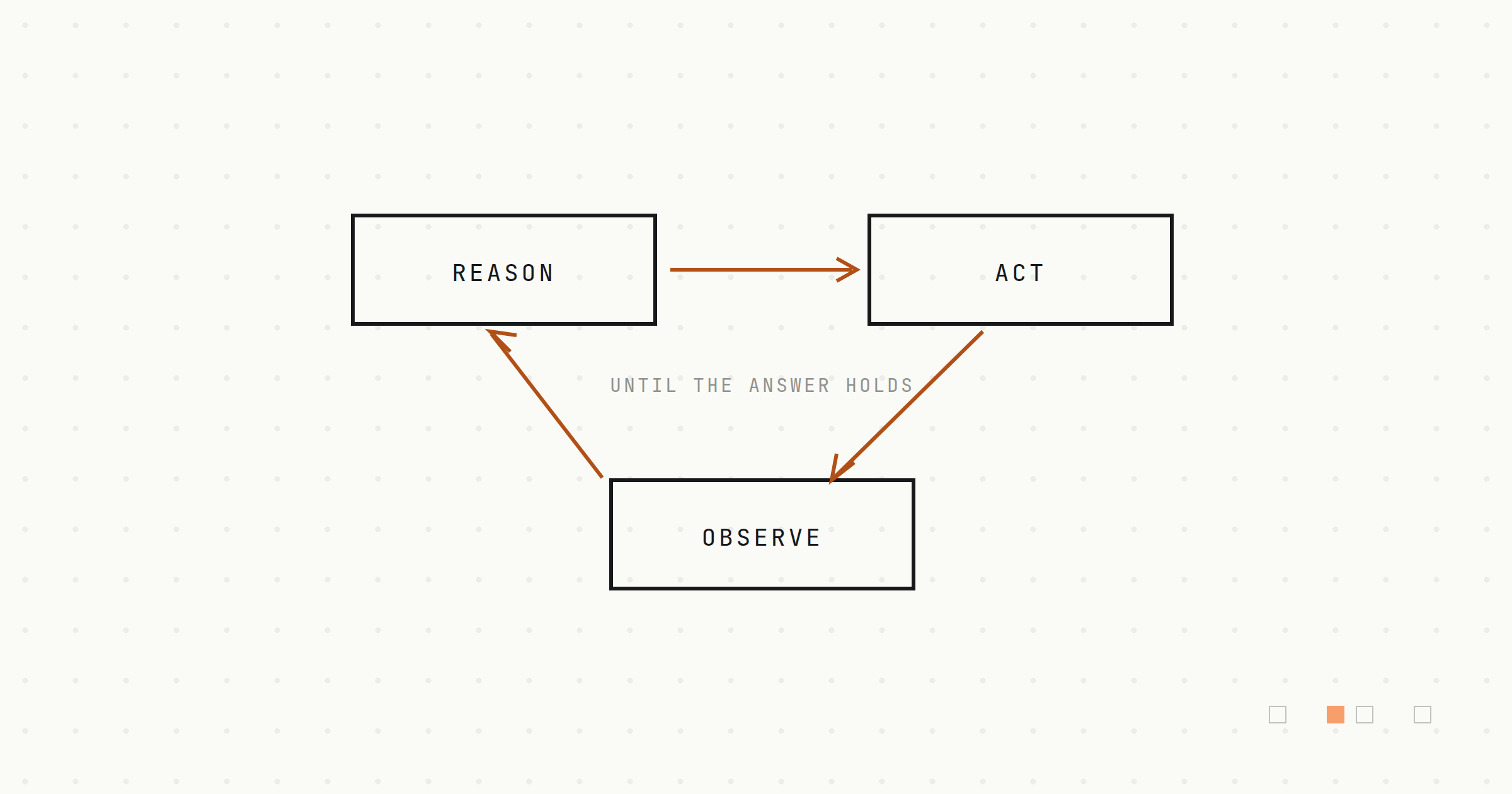
Vectrix now speaks MCP, so Claude Code, Codex and other assistants can work with your shipments.
On per project. An admin switches on MCP access in the Assistant settings.
Copy the setup. Sign in once with your Vectrix account, then just ask.
Signed in as you. Your assistant sees only what you can see in Vectrix.
Ask Vexi to make the change
Vexi, the assistant inside Vectrix, now makes changes for you.
Just ask. Vexi creates and edits customers, locations, fields and business rules.
You approve first. Vexi asks before it deletes anything.
Your permissions. Vexi can do what your role allows, nothing more.
Earn new looks for Vexi
Vexi now comes in more than one look.
Earned along the way. New looks open up as your project processes orders and stays with Vectrix.
Seasonal looks too. Spotted a witch hat last week? That was Halloween Vexi. She is back next October.
Your choice. It changes Vexi only for you, in this project.